


Epson Projector Price South Africa: A 2026 Home Cinema Buyer’s Guide
August 19, 2026
Signs You Need a New Epson Projector or Lamp Replacement: A Professional 2026 Guide
August 21, 2026
What if that frustrating “No Signal” message on your Epson projector isn’t a sign of terminal hardware failure, but simply a digital “handshake” error? We understand the sudden anxiety that hits when a planned movie night is halted by a blank screen. It’s an interruption no home cinema enthusiast should have to endure. This comprehensive guide to Epson projector no signal troubleshooting provides the expert steps required to resolve these communication breakdowns and restore your premium viewing experience.
We’ll move quickly through the most effective fixes to get your devices talking again. You’ll discover how to navigate the complexities of HDMI 2.2 standards, protect your sensitive equipment from the unique challenges of South African power surges, and identify exactly when it’s time to consult a professional. We’ve designed this walkthrough to be fast, logical, and highly functional, focusing on getting you back to your favourite content without delay. Let’s get your screen back to life and ensure your next premiere remains flawless and uninterrupted.
Key Takeaways
- Master Epson projector no signal troubleshooting by learning the vital difference between a basic handshake error and a resolution mismatch.
- Upgrade to high-speed HDMI cables to ensure your premium home cinema maintains a stable connection, especially across the large spaces common in South African homes.
- Optimise source devices like Apple TV or laptops by adjusting refresh rates and display modes to match your projector’s specific requirements.
- Safeguard your equipment against the unique risks of load shedding and power surges with high-quality surge protection and robust power management.
- Recognise the clear indicators of internal hardware failure so you know exactly when to call for professional diagnostics and repairs.
Understanding the Epson “No Signal” Message
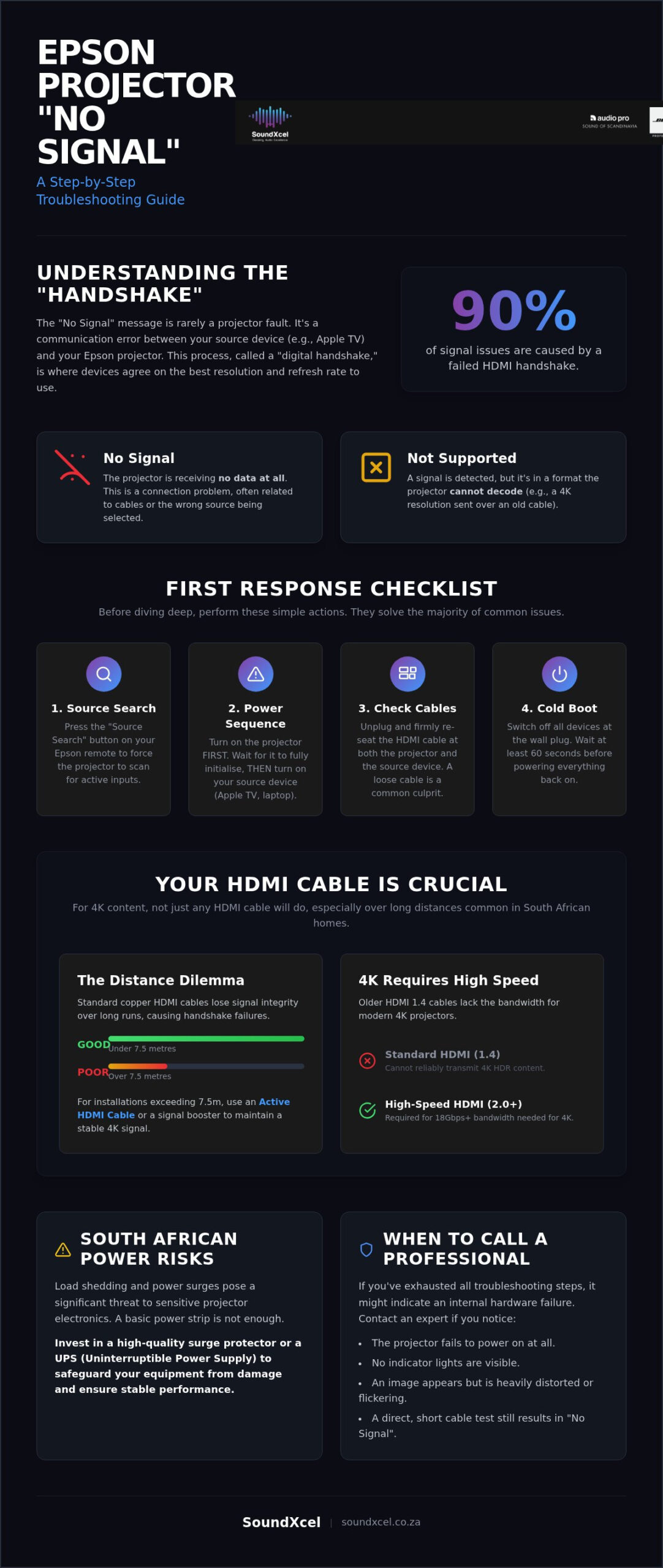
Seeing a “No Signal” message on your screen is frustrating, but it’s rarely a sign of a broken projector. It simply means your Epson unit is powered on and ready, but it isn’t receiving a readable data stream from your source. Modern video projector technology relies on complex digital communication to display high-resolution images. This is where Epson projector no signal troubleshooting begins. Common culprits usually involve damaged cables, incorrect source settings, or intermediate devices like AV receivers that fail to pass the signal through correctly.
Before an image appears, your projector and source device must perform a digital handshake. They exchange Extended Display Identification Data (EDID) to agree on the best resolution and refresh rate. The HDMI handshake is the primary cause of 90% of signal issues. If this conversation fails, the projector defaults to a “No Signal” screen to protect its internal circuits.
There’s a subtle but vital distinction between “No Signal” and “Not Supported” in a 4K home cinema setup. “No Signal” means the projector sees nothing at all. “Not Supported” means it detects a signal but can’t decode it. This usually happens when your source outputs a 4K frequency or HDR format that exceeds your cable’s bandwidth or isn’t compatible with the projector’s current port settings.
The Anatomy of a Projector Handshake
Devices use EDID to communicate their capabilities. If your streaming box tries to send a signal the projector doesn’t understand, the link breaks. The order in which you power your system matters for Epson models. Always turn on your projector first, let it fully initialise, and then activate your source device. This ensures the projector is ready to “listen” when the source starts its digital handshake.
Initial Quick Fixes to Try First
Don’t assume there’s a hardware failure. Start with these simple actions to restore the connection:
- Cycle through sources using the “Source Search” button on your Epson remote to force the projector to look for active data.
- Use the “Cold Boot” method by switching off the entire system at the wall for at least sixty seconds before restarting.
- Check the physical seating of your cables at both the projector and the source device.
Often, a cable that looks plugged in has actually wiggled loose just enough to break the data pins. Unplug the HDMI completely and push it back in firmly until it seats fully. This basic step solves more problems than you might expect and should always be your first move during Epson projector no signal troubleshooting.
How to Resolve HDMI and Cable Connectivity Issues
High-performance Epson home cinema projectors demand massive data throughput to deliver crisp, 4K imagery. If your cable lacks the necessary bandwidth, your screen remains dark. This is a physical communication failure. Unlike a software glitch, cable issues often stem from signal degradation or outdated hardware standards. In many South African homes, projectors are ceiling-mounted far from the media centre. These long distances are the primary enemy of digital signal integrity. Standard copper HDMI cables typically struggle to maintain a stable connection over distances exceeding 7.5 metres without significant loss.
For extensive installations, you must use active HDMI cables or signal boosters. These devices use internal electronics to amplify the data stream, ensuring the signal reaches the projector without dropping frames. If you’re currently facing a blank screen, following a methodical Epson projector no signal troubleshooting process is the fastest way to isolate the fault. You can find more brand-specific technical details in this Official Epson troubleshooting guide to help identify port-specific limitations.
Testing Cable Integrity and Length
Isolate the point of failure with this direct testing protocol. First, connect a short, known-working HDMI cable directly from your source to the projector, bypassing any AV receivers or switchers. If the image appears, your long-run cable or receiver is the culprit. Second, swap your current cable with one from another working device. Third, use a torch to inspect the HDMI ports on both ends for bent pins or accumulated dust. Fourth, try lowering the output resolution on your source device; if the signal returns at 1080p but fails at 4K, your cable cannot handle the higher bandwidth. Finally, ensure all connections are seated firmly. A cable that is only partially inserted will fail the digital handshake every time.
Understanding HDMI Standards for 4K Content
Your old HDMI 1.4 cables from a decade ago won’t work with a modern Epson 4K projector. They lack the 18Gbps data rate required for 4K at 60Hz. When a cable is underpowered, you might see a “Signal Not Supported” message instead of “No Signal.” This indicates the projector sees the data but the cable is corrupting the stream. Ensure your cables carry the “Premium High Speed” or “Ultra High Speed” certification. If you’re unsure about your current cabling setup, it might be time to upgrade your home cinema components to ensure full compatibility with the latest 2026 standards. Identifying a faulty cable early prevents the anxiety of assuming your expensive projector has suffered a hardware failure.
Troubleshooting Specific Input Sources
Once you’ve confirmed your cables are functional, the focus of Epson projector no signal troubleshooting shifts to the source device. Different hardware communicates with projectors in unique ways. A laptop requires different settings than a streaming box. If your source sends a signal that exceeds the projector’s current configuration, you’ll be left with a blank screen. This often happens because of HDMI and HDCP handshake issues, where the copy protection prevents the video from displaying even though the hardware is physically connected.
Configuring Laptops and PCs for Epson Projectors
Laptops are notorious for display mismatches. Ensure your PC is set to “Duplicate” or “Extend” mode by using the project menu. If your laptop is outputting a resolution higher than the projector can handle, such as an ultra-wide monitor setting, the projector will fail to display. Match the output resolution to the projector’s native aspect ratio, typically 16:9. Refresh rates also play a critical role. Set your graphics card to 60Hz for standard use or 24Hz for cinematic content. If these adjustments don’t work, verify that your graphics card drivers are up to date, as outdated software can prevent the digital handshake from completing.
Signal Management with AV Receivers
In a premium home cinema, your signal likely passes through an AV receiver before reaching the projector. This adds another layer of complexity. Ensure your receiver is set to the correct HDMI output, specifically looking for ARC or eARC ports if you’re using return audio. Some receivers have “Video Passthrough” or “Upscaling” features that can interfere with the Epson’s ability to read the incoming data. If you’re integrating high-end audio, follow our specific guide on Bose Lifestyle and Epson Projector Setup to ensure seamless communication between your components.
Streaming devices like Apple TV, Fire Stick, or Shield TV often update automatically. These updates can occasionally reset their video output settings to a frequency the projector doesn’t recognise. If you suddenly lose signal, connect the streaming device to a standard television first. Lower the resolution to 1080p, then reconnect it to your Epson projector. Once the signal is established, you can gradually increase the resolution within the device settings until you find the highest stable 4K configuration your system supports. This methodical approach identifies whether the device or the projector is struggling with the current data load.
Environmental and Power Factors in South Africa
South Africa’s unique power environment presents specific challenges for home cinema enthusiasts. Load shedding and the resulting power surges are frequent causes of communication failure between devices. When the grid returns, a massive voltage spike can travel through your system, often targeting the most sensitive components. This is a critical factor in Epson projector no signal troubleshooting that generic international guides often overlook. High-quality surge protectors are non-negotiable for premium AV equipment.
You might also experience “brownout” symptoms. This occurs when the voltage is too low for the projector’s internal processors to function correctly. The unit may power on and display its own menu, but it fails to process incoming digital signals. A dedicated Uninterruptible Power Supply (UPS) is essential. It provides a stable voltage and allows the projector’s cooling fans to run after a power cut, protecting both the lamp and the delicate HDMI boards.
The Impact of Power Surges on HDMI Ports
HDMI ports operate on very low voltage. They are particularly susceptible to damage from spikes coming through the power line or even the HDMI cable itself. A “blown” HDMI IC chip is a common result of a surge. If your projector works with one port but shows “No Signal” on another, the internal hardware has likely failed. Voltage regulators and proper earthing of your media centre can prevent these costly failures. If your hardware is damaged beyond repair, explore our latest Epson home cinema projectors to restore your viewing experience.
Firmware Corruptions and Resets
Sudden power losses can corrupt your projector’s firmware. This software governs how the device interprets the HDMI handshake. If the code becomes corrupted, the projector won’t recognise any input. You can often resolve this by performing a factory reset via the Epson menu or physical buttons. In 2026 models, updating to the latest firmware can fix known signal bugs. However, only perform these updates when you are certain the power is stable. Unstable power during a firmware flash can permanently damage the mainboard.
When to Seek Professional Epson Projector Repair
When your methodical Epson projector no signal troubleshooting yields no results, you must determine if the fault is internal. Professional diagnostics are essential for high-value home cinema investments. Attempting complex internal repairs without specialised knowledge can void warranties and cause further damage. SoundXcel provides South African clients with premium hardware support, ensuring your system returns to peak performance quickly. We understand that a blank screen isn’t just a technical glitch; it’s a disruption to your lifestyle that requires a swift, expert resolution.
A professional technician can distinguish between a corrupted firmware chip and a physically damaged HDMI port. They use specialised tools to test signal continuity that standard home troubleshooting cannot replicate. If your projector has been exposed to significant power surges, the internal damage might not be visible from the outside. Relying on an authorised expert ensures that genuine Epson parts are used, maintaining the integrity and longevity of your equipment.
Identifying Internal Hardware Faults
Hardware failure often mimics configuration errors, but there are clear red flags to watch for. If the “No Signal” message persists across all HDMI ports and multiple new cables, the issue is likely the mainboard or the HDMI IC chip. The mainboard acts as the brain of the device, processing all incoming digital signals and managing the handshake. When this component fails, the projector remains blind to any input regardless of the source. Pay close attention to the Epson warning lights on the chassis. A flashing red “Status” or “Lamp” light alongside signal loss often indicates a hardware failure rather than a simple resolution mismatch. High internal temperatures or a failing cooling fan can also trigger a temporary signal cutout as the system attempts to protect the optical engine from heat damage.
Upgrading Your South African Home Cinema
Technology moves fast. Sometimes, the cost of replacing a mainboard or an optical block on an older unit exceeds its current market value. Evaluate if your current projector meets 2026 standards for 4K resolution and High Dynamic Range (HDR). A repair might fix the signal, but it won’t provide an older model with the brightness or colour depth of a new laser unit. If your projector has been damaged by frequent power surges during load shedding, a modern unit with better internal protection might be the more reliable choice for the future. View the latest Epson Projector Price South Africa to compare repair costs against a modern upgrade.
SoundXcel specialises in complex Epson and Bose integrations across South Africa. We help you decide whether a professional repair or a strategic upgrade is the best path forward for your home cinema. Contact SoundXcel today for expert advice or a professional system health check to ensure your entertainment space remains a sanctuary of high-quality technology.
Secure Your Ultimate Home Cinema Experience
Restoring your visual sanctuary starts with a methodical approach to cable integrity and digital handshakes. Most signal interruptions are resolved by aligning your hardware standards or implementing robust power protection against local grid instability. By following these Epson projector no signal troubleshooting steps, you can confidently navigate the complexities of 4K integration and ensure your equipment remains resilient. Protecting your investment from environmental factors is just as vital as selecting the right HDMI cable for your setup.
As an authorised Epson retailer and specialist in premium AV integration, SoundXcel provides national South African support to keep your systems flawless. We understand the intersection of luxury and functionality, offering the expertise needed to maintain a sophisticated home cinema. Whether you require expert advice on a complex Bose setup or wish to refresh your hardware, our team is ready to assist. Browse our range of Epson Home Cinema Projectors today to find the perfect centrepiece for your entertainment space. Your ideal viewing experience is closer than you think, so take the next step towards uninterrupted cinematic excellence.
Frequently Asked Questions
Why does my Epson projector say “No Signal” when the HDMI is plugged in?
Handshake failure occurs when the projector and source don’t agree on resolution or HDCP settings. Even if the cable is physically connected, the digital data stream might be blocked by a communication error. Ensure you’ve selected the correct HDMI input port using your remote. Sometimes, switching to a different port on the projector can bypass a localised handshake glitch and restore your premium home cinema experience immediately.
Can a faulty HDMI cable cause a “No Signal” message on an Epson projector?
Yes, a faulty or underpowered cable is a frequent cause of signal loss. High-resolution 4K content requires a Premium High Speed cable capable of 18Gbps. If your cable is old or damaged internally, it might fail to carry the heavy data load required for modern Epson models. Swapping to a certified, shorter cable is a vital part of Epson projector no signal troubleshooting to isolate the point of failure.
How do I reset the HDMI handshake on my Epson projector?
Resetting the handshake requires a specific power-on sequence. Turn off all devices at the wall for sixty seconds to clear the digital cache. Power on the projector first and wait for it to reach its standby or home screen. Only then should you activate your source device, such as an Apple TV or Blu-ray player. This order ensures the projector is ready to receive the EDID information as the source starts its broadcast.
Why does my projector show “No Signal” only when I use a specific laptop?
This usually indicates a resolution or refresh rate mismatch within the laptop’s display settings. If your laptop outputs a resolution higher than the projector’s native capacity, the handshake will fail. Access your PC’s display settings and ensure the output is set to 1920×1080 or 3840×2160 at 60Hz. Also, verify that your graphics drivers are updated, as outdated software can prevent the laptop from recognising the Epson projector as a valid display.
Does load shedding damage the HDMI ports on my Epson projector?
Load shedding itself doesn’t cause damage, but the power surges that follow restoration can destroy sensitive HDMI IC chips. These voltage spikes travel through the power lines and can even jump through HDMI cables. To protect your equipment, always use a high-quality surge protector or a UPS. If your projector powers on but fails to detect any signal after a blackout, the internal HDMI board may have suffered electrical damage.
What should I do if my Epson projector remote “Source Search” isn’t working?
If the remote’s Source Search button fails, use the physical Source or Input button located on the projector’s control panel. This bypasses potential remote hardware issues or signal interference. If the manual button also fails to trigger a search, the projector’s firmware might be frozen. Perform a Cold Boot by unplugging the unit from the mains for several minutes. This often clears software glitches that prevent the input selector from functioning correctly.
Is it worth repairing an Epson projector with a faulty HDMI port in South Africa?
Repairing a faulty HDMI port is often worthwhile for premium, high-value models. In South Africa, authorised service providers can replace damaged components with genuine Epson parts. However, for entry-level or older projectors, the labour and part costs might approach the price of a modern upgrade. Consult a specialist to weigh the repair costs against the benefits of a new unit featuring improved brightness and 2026 connectivity standards.
How can I tell if my Epson projector lamp is failing or if it is just a signal issue?
A failing lamp usually triggers a specific warning light on the projector’s chassis, often labelled Lamp or Status. If the lamp is the issue, the screen will remain completely dark, and you won’t be able to see the projector’s internal menu. If you can still see the Epson home screen or menu but no video from your player, the lamp is functional. This confirms the problem is a signal communication error rather than a hardware lighting failure.
