


Bose Multi-Room Audio Setup: A Practical Guide for 2026
October 1, 2026
Bose SimpleSync Explained: How It Works and What Connects
October 3, 2026
Choosing the right Bose app depends on the age and type of your audio device. If you’re unsure what to download or where to find a setting, you’re not alone. This Bose Music app tutorial explains that the current app is called the Bose App, and it isn’t a universal controller for every Bose product. Some older devices use Bose Connect or Bose SoundTouch instead.
Once you’ve identified the right app, setup should be straightforward. The available controls depend on your connected product, so options for compatible headphones won’t necessarily appear for a speaker or soundbar. Knowing what to expect can save time and help you get more from your listening setup.
Follow the steps below to install and connect the app, explore the controls available for your device, and work through common connection issues. You’ll also learn when to check product-specific Bose guidance, especially if your app screens or features differ from those described here.
Key Takeaways
- Use this Bose Music app tutorial to find the current app listing and follow the setup prompts for your specific model.
- Have your Bose product model to hand so you can check compatibility before adding it in the app.
- Explore the controls shown for your connected device rather than expecting every Bose product to offer the same options.
- If setup stalls, identify whether the problem is product detection, connection or an unavailable control, then consult current Bose guidance for your model.
- If app guidance doesn’t answer a product-choice or hardware question, Bose product expertise may help you work out what to check next.
What is the Bose Music app, and what do you need before setup?
The Bose Music app is a control app for compatible Bose audio products, and its features depend on the device you connect. It can help you manage a supported product, but it isn’t a universal controller for every Bose model. For example, Bose QuietComfort Ultra Headphones integrate with the app, and the Bose Smart Ultra Soundbar is also compatible.
You may still know it as the Bose Music app. Bose’s current name for its app is the Bose App, so check the current app store listing before downloading. Confirm that the publisher is Bose and that the listing identifies your exact product as compatible. Some older Bose products may use a different app, such as Bose Connect or Bose SoundTouch.
For a visual guide to initial setup, watch this video from Bose Product Support:
Is Bose Music app now called the Bose app?
Yes. Bose now calls its current app the Bose App, although Bose Music app remains a familiar search term. App store wording can change, so check the current listing rather than relying on an old guide or an app icon alone. Don’t assume a legacy product has moved to the current app. Confirm support for its model first.
What to check before connecting a Bose product
Find the model name on the product, packaging or documentation, then use Bose’s current setup instructions for that model. App screens and available controls can differ by product. This overview of Bose portable audio products can provide background, but use the product’s current Bose guidance to confirm app compatibility and features.
- Check your phone or tablet: In October 2026, the iOS listing requires iOS 17 or later. Android requirements vary by device, with recent app versions requiring Android 13 or later. Check your app store listing for the current requirement.
- Check the connection: Setup may use Bluetooth, Wi-Fi or both, depending on the product and the function you’re setting up. Follow the model’s instructions and grant the permissions the app requests.
Keep this Bose Music app tutorial focused on your exact device. If the app doesn’t recognise it, verify compatibility and consult the product’s current Bose setup guidance before trying steps intended for another model.
How to set up the Bose Music app step by step
Once you’ve checked that your model is supported, use the app’s current prompts as your guide. The Bose App may show different screens or use different connection methods for different products. Treat the steps below as a sequence, not a promise that every label will match your screen.
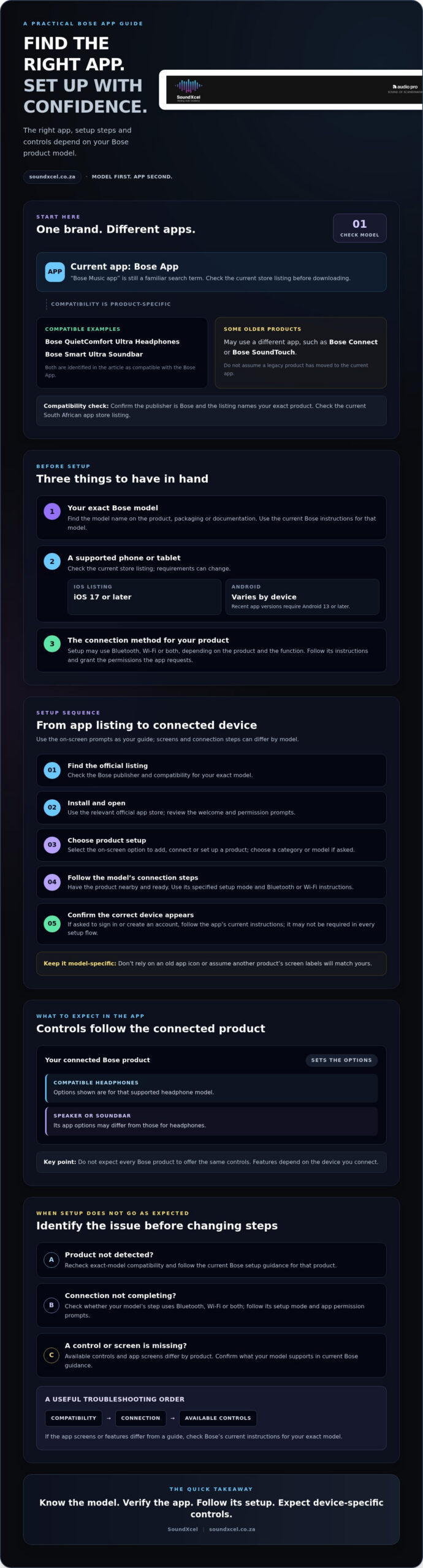
In brief: verify the official app listing, install and open it, choose the option to add or set up a product, follow that model’s Bluetooth or Wi-Fi instructions, then check that the app displays the correct device.
Download the app and begin product setup
Use the app store on your phone or tablet to find Bose’s current app listing. Check the publisher and compatibility information before installing. Bose’s official Bose family of smart speakers and soundbars page can help you review compatible products. Confirm support for your exact model and check the current South African app store listing.
- Install: Download the app from the relevant official app store. Avoid third-party download pages.
- Open: Launch the app and review its welcome and permission prompts. Their wording may change with app updates.
- Start setup: Choose the on-screen option to add, connect or set up a product. Select a category or model if the app asks you to identify it.
If the app asks you to sign in or create an account, follow its current instructions. Don’t assume this is required for every product or setup flow. Check the prompts shown for your device.
Connect your Bose device and confirm setup
Before continuing, have the product nearby and ready according to its model guide. Some setup flows rely on Bluetooth, while others may ask you to connect the product to Wi-Fi. Permission requests can also differ. If you’re unsure which permissions are needed, consult Bose’s instructions for your model.
- Follow the prompts: Put the product into the connection or setup mode specified in its guide, then follow the app’s pairing or network steps. If Wi-Fi is requested, use the network details required by that product.
- Check the device name: Wait for the app to identify the product. Before changing settings, make sure the displayed model is the one you’re setting up.
- Test a control: After setup, try one control that appears in the app. Options vary by product, so an absent feature doesn’t necessarily mean setup has failed.
If the app’s screens don’t match these steps, pause rather than guessing. Return to the current guide for your exact model, and check compatibility if the product doesn’t appear. If you’re choosing a Bose device for your listening setup, you can explore SoundXcel’s Bose products for product information.
Which Bose Music app controls can you use with each device?
The Bose App is a controller, but the options it provides depend on the connected product. App integration doesn’t mean two devices share the same settings, playback options or menus. In this Bose Music app tutorial, use confirmed compatibility as your starting point, then check the current official guide for the controls available on your exact model.
How app controls differ between Bose headphones and speakers
The examples below distinguish app compatibility from specific controls. They don’t assume that a feature is available just because a product connects to the app.
| Product | Confirmed app information | What to check |
|---|---|---|
| Bose QuietComfort Ultra Headphones | Integrate with the Bose Music app. | Check the current headphone guide for available controls and settings. |
| Bose Smart Ultra Soundbar | Compatible with the Bose Music app. | Consult its current guide for supported app controls. |
Keep the distinction clear: compatibility confirms that a product works with the app, not which individual options it displays. Don’t transfer settings from headphones to a soundbar, or assume another speaker model has identical controls. Product features and app screens can change, so confirm details against current Bose documentation.
Where to find settings, playback and product information
After connecting your product, open its screen in the app and use the controls shown there. Menu names and locations can change between app versions, so treat older screenshots or general instructions as a guide rather than a guarantee. Check the current interface and available settings for your model before following feature-specific steps.
If you’re comparing compatible home audio, a Bose sound system guide can help you consider which product may suit your setup. Once you’ve connected a device, test a control visible in its app view. If a control appears unavailable or the product doesn’t respond, first check that the model supports the feature. Bose’s guidance on how to fix connection and setup problems may help with app connection issues.
Bose Music app troubleshooting: fix connection and setup problems
Start by identifying where setup stops. Does the app fail to find the product, does the connection fail after detection, or is a particular control missing? A connection problem means the app and product aren’t communicating; a missing control may simply mean that feature isn’t supported by your model. Use this Bose Music app tutorial troubleshooting checklist to distinguish between the two.
The app cannot find or connect to your Bose product
Check the product’s exact model and confirm it’s compatible with the current Bose App. Then work through these checks in order, following the model’s official instructions rather than applying steps intended for another device:
- Check power and setup mode: Make sure the product is powered and ready to connect as described in its guide. Follow the specified Bluetooth pairing or Wi-Fi setup steps.
- Review permissions and network: Allow the permissions requested for that setup. If the product uses Wi-Fi, check the network conditions stated in its instructions. Requirements can vary by model and function.
- Retry the app flow: Close and reopen the app, then try the documented add or setup process again. If the product or phone needs restarting, do so only as directed by the relevant product guidance.
- Check for updates: Follow official instructions to check whether the app or product software needs updating.
If the app still can’t detect or connect to the product, avoid factory resets or unverified button combinations. Look up current Bose troubleshooting steps for the exact model, or contact Bose support for product-specific guidance.
A control or feature is missing from the app
First, confirm that the exact model supports the control you’re looking for. App compatibility alone doesn’t guarantee that every feature will appear on every product. Check the current model documentation and app instructions, then use Bose’s official update guidance to check whether the app and product software are up to date.
If the feature should be available but remains missing, note your product model, app version and the steps you’ve tried. These details can help you get relevant support. Don’t assume that instructions for a different Bose product apply, and don’t reset the device unless its official guide recommends it.
For unresolved app issues, contact Bose support. If you need advice about a Bose product or have a Bose-specific repair enquiry, contact SoundXcel about Bose products and repairs.
Choose your next step: use Bose app guidance or get product advice
After working through this Bose Music app tutorial, keep your next step simple: identify the exact product model, confirm that it’s compatible with the current Bose App, then follow its official setup guide. The model matters. Connection methods, app screens and available controls can differ between products, so avoid applying instructions written for another device.
When to consult Bose documentation or ask for help
Use current Bose instructions for app and product software updates, connection requirements and any restart or reset procedure. These steps can be model-specific, and an incorrect reset may disrupt your setup. If you’ve followed the verified instructions and the app still can’t detect or connect to the product, contact Bose support for guidance on that model.
App guidance may be enough if you need to locate a documented setting or repeat a standard setup step. A product-specific question may call for a different kind of help. If you’re unsure which Bose speaker or headphones suit your needs, product advice can help you compare options. For a hardware issue, check whether the provider handles that particular Bose product and type of repair.
Explore compatible Bose products with SoundXcel
Compatibility is useful to confirm, but it’s only one part of choosing a device. Think about where you’ll use it and what you want from your listening setup, then check the official model information for app support and functions. SoundXcel offers Bose products in South Africa, including Bose QuietComfort Ultra Headphones, Bose Lifestyle Collection products and Bose Smart Home speakers.
If you’re planning a home cinema, a Bose Lifestyle and Epson projector setup guide may be a useful next read. Check its recommendations against the space and equipment you have in mind, and verify app compatibility for each Bose model separately. Don’t assume that one product’s controls or setup requirements apply to another.
For setup questions, start with the product’s current Bose guide. If you’re still deciding what to buy, or have a Bose-specific repair enquiry, SoundXcel’s Bose product and repair information can help you assess your options. There’s no need to change devices just because a control isn’t visible. First confirm that the feature is supported by your exact model.
Make the most of your Bose listening setup
The key to a smoother app experience is knowing your exact Bose model. Confirm it’s compatible, follow its current setup guidance and remember that available controls depend on the product. If a device won’t connect, troubleshoot the connection first. If a control is missing, check whether that model supports it.
This Bose Music app tutorial can also help you decide when you need product-specific guidance. Bose QuietComfort Ultra Headphones integrate with the Bose Music app, but don’t assume their available controls match those of a speaker or soundbar.
SoundXcel specialises in Bose audio products and Bose-specific repairs. If you’re considering a Bose product or need help exploring your options, explore Bose audio products with SoundXcel.
With the right model information and setup guide, you can take the next step with confidence and choose a listening experience suited to your needs.
Frequently Asked Questions
How do I connect my Bose Music app to my Bose device?
Confirm your product’s exact model, then download the current official Bose app from your phone’s app store. Open it and follow the prompts to add or set up a product. The steps in this Bose Music app tutorial can vary between headphones, speakers and soundbars, so use your model’s instructions if the app screens differ. Before trying the controls, check that the app identifies the device you intended to connect.
Is the Bose Music app the same as the Bose app?
Yes. Bose’s current app is named the Bose App, though people still commonly search for “Bose Music app”. Check the current app store listing and Bose support information before downloading, as names, menus and compatibility details can change. Confirm the publisher and check whether your exact product is supported. Don’t rely on an older tutorial if its screens or product list don’t match your device.
Can I use the Bose Music app with any Bose product?
No. Compatibility depends on the product model, and the app doesn’t support every Bose product. Bose QuietComfort Ultra Headphones integrate with the app, and the Bose Smart Ultra Soundbar is compatible. These examples don’t mean other models share the same compatibility or controls. Check Bose’s current compatible-product information for your exact model before setup, and don’t assume a feature available on one device will appear on another.
Why is my Bose device not showing in the app?
First, check that your exact model is compatible with the current Bose App. Make sure the product is powered, then follow its official pairing or network setup steps. Check phone permissions and network conditions if the model’s instructions require them. Close and reopen the app before retrying setup. If the product still doesn’t appear, consult current Bose troubleshooting guidance rather than trying reset steps intended for another model.
Do Bose Music app features vary by product?
Yes. The controls and settings shown depend on the connected product, so app compatibility doesn’t mean every device offers the same functions. Check your model’s current official documentation to confirm its supported features and how to access them. If a control is missing, verify the product model and app version first. Don’t assume the device is faulty until you’ve confirmed that it supports the function you’re looking for.
Can I use the Bose app without Wi-Fi or Bluetooth?
It depends on your product and the function you want to use. Setup may use Bluetooth, Wi-Fi or both, while connection requirements can differ between app functions and device models. Check the current instructions for your exact product before switching off either connection or troubleshooting a failed setup. This Bose Music app tutorial covers the general process, but the model-specific guide is the authority on its requirements.
What should I do if a Bose Music app feature is missing?
Check whether the feature is supported by your exact model, then consult its current official instructions for the setting’s location and requirements. App screens can change, so use current Bose guidance rather than a video showing a different version. Check for app and product software updates using official instructions. If the model should support the feature and it’s still unavailable, contact Bose support or seek relevant product advice from SoundXcel.
