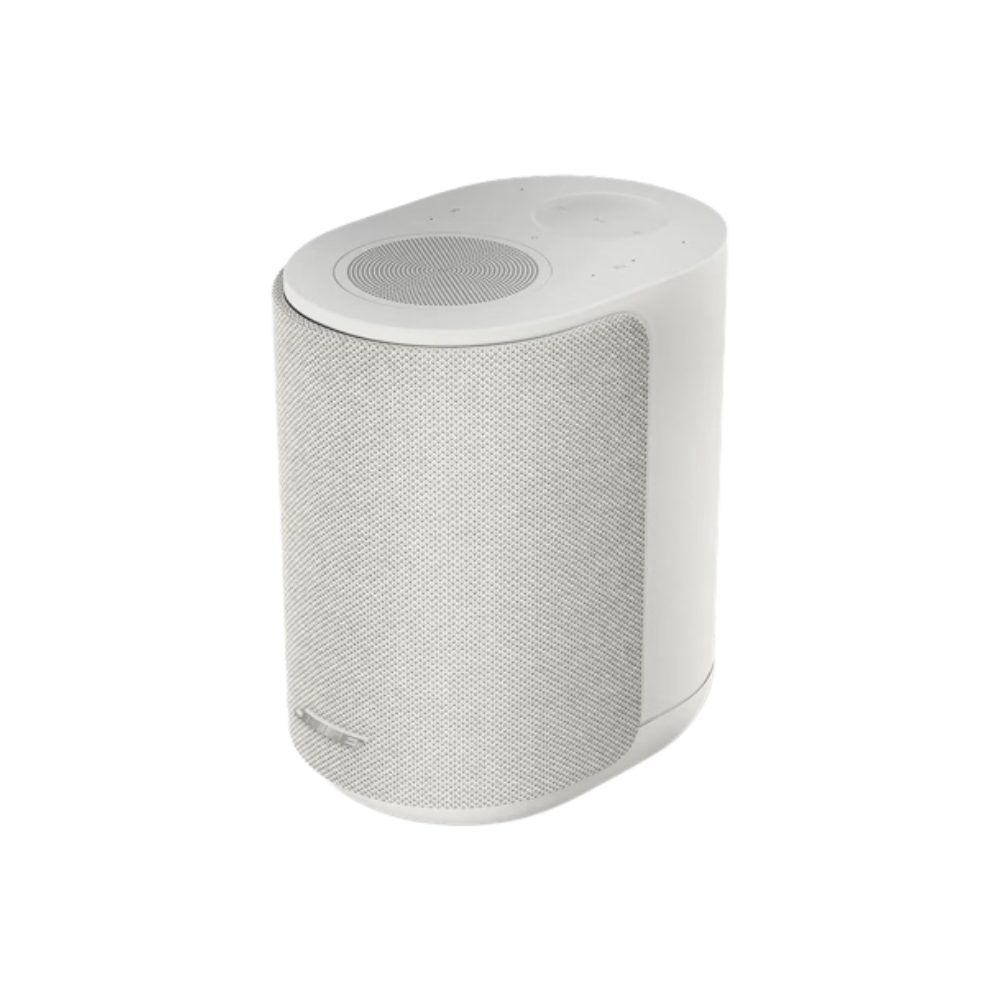
How should I place or position my Lifestyle Ultra Speaker for the best sound?
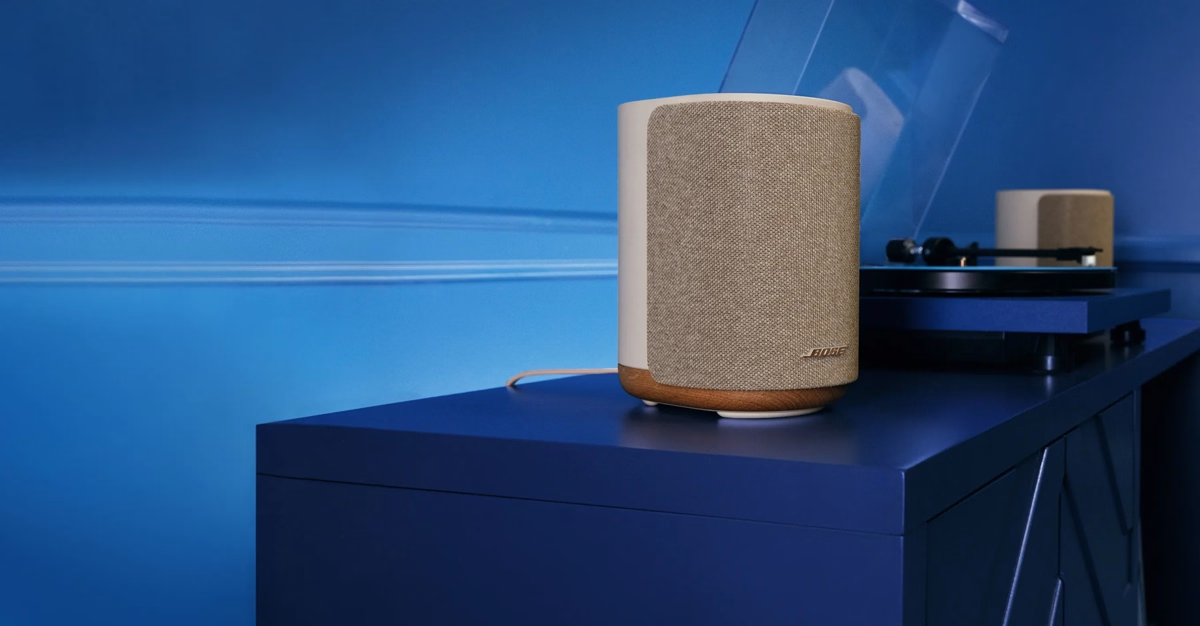
The Lifestyle Ultra Speaker is incredibly flexible but works best when it has space around it on a flat, stable, and level surface. It can also be used with the Bose Lifestyle Floor Stand or Bose Lifestyle Wall Bracket.
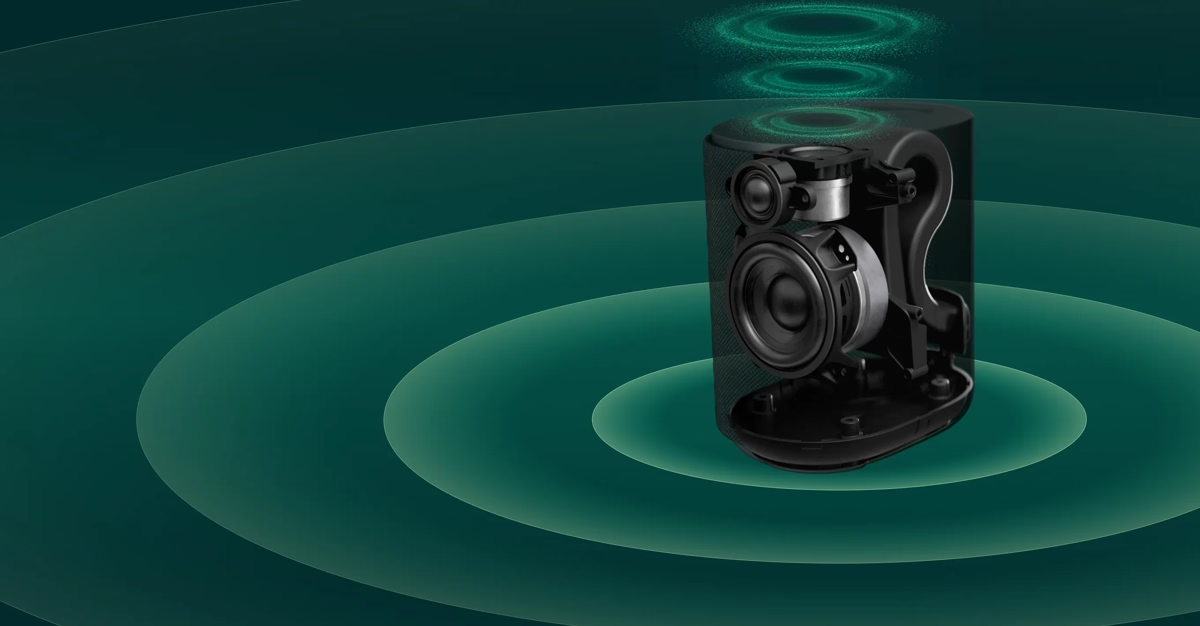
It is recommended to place the Lifestyle Ultra Speaker at least 2 inches away from a wall or corner to prevent unintended bass frequency buildup. To get the most from your Lifestyle Ultra Speaker, do not place it in or under a shelf/cabinet, as this will prevent the upward-firing speaker from spreading out into the room and significantly impact your speaker’s performance.
When using the Bose Lifestyle Wall Bracket, it is recommended to mount the top of the bracket at or just above ear height of your listening position and angle the speaker into your listening position. The speaker may be mounted higher and angled down; however, it is recommended to leave at least 24 inches between the top of the speaker and the ceiling to maintain the separation of surround and height effects. It is highly recommended to run the CustomTune process to optimize your sound when mounting the Lifestyle Ultra Speakers as part of your home theater setup.
The Lifestyle Ultra Speaker is not rated for outdoor use.
How can I play content on my Lifestyle Ultra Speaker?
The primary way to connect to the Lifestyle Ultra Speaker is via Wi-Fi options like Apple AirPlay, Google Cast, Spotify Connect, or Amazon Alexa (where available). Apple AirPlay and Spotify Connect are available immediately after Wi-Fi setup. To get started with Google Cast, you will need to open the Bose app and turn on Google Cast for each product. To get started with Amazon Alexa, you will need to open the Bose app and enable Amazon Alexa for each product. Bluetooth audio and a 3.5 mm aux input are also available.
What voice assistants are supported? Can I turn them off?
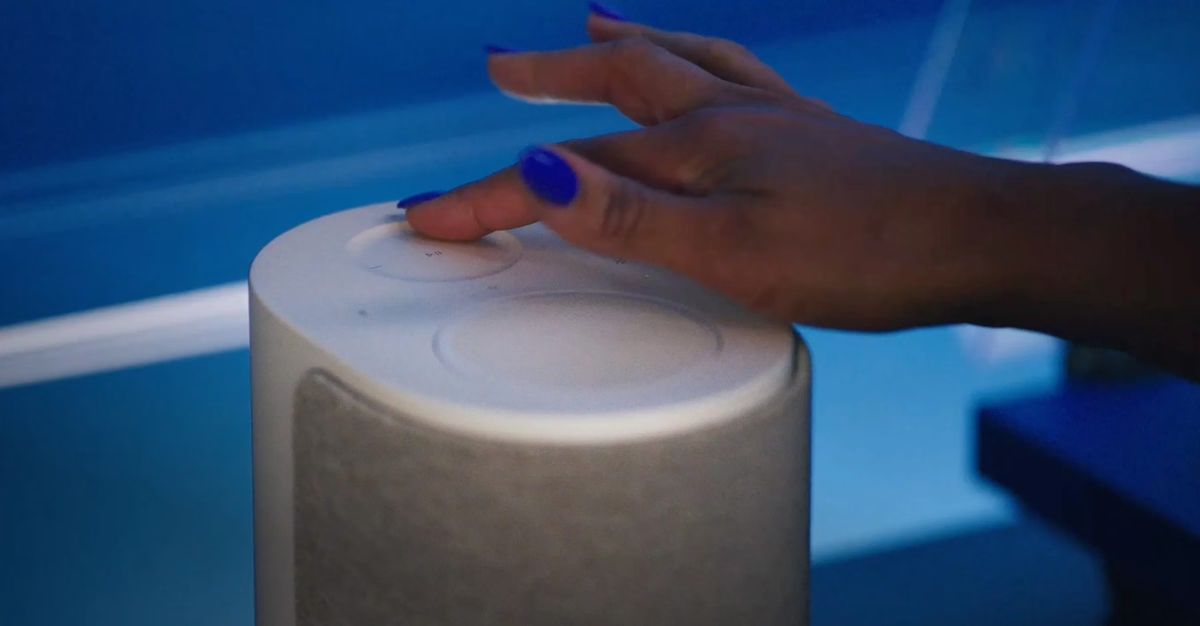
The Lifestyle Ultra Speaker supports Amazon Alexa and is ready for Alexa+ in the US. Follow the instructions in the Bose app to enable Amazon Alexa services. Once enabled, you can mute the mic using the speaker’s mic mute button, a red light will stay on. Tap again to unmute the microphone and the light will go off.
Can the Bose Lifestyle Ultra Speaker be used as part of a multiroom audio experience?
Yes. The Lifestyle Collection products can be grouped as part of a multiroom audio system using Apple AirPlay or Google Cast. To get started with Google Cast, open the Bose app and turn on Google Cast for each product.
Can I pair two Bose Lifestyle Ultra Speakers in stereo?
Yes. Two Lifestyle Ultra Speakers can be configured as a stereo pair in the Bose app to create a wide, immersive soundstage. If setting up two new Lifestyle Ultra Speakers as a stereo pair, select the stereo pair option in the app during setup of the first speaker to minimize steps later.
Can I use Bose Lifestyle Ultra Speaker with my TV?
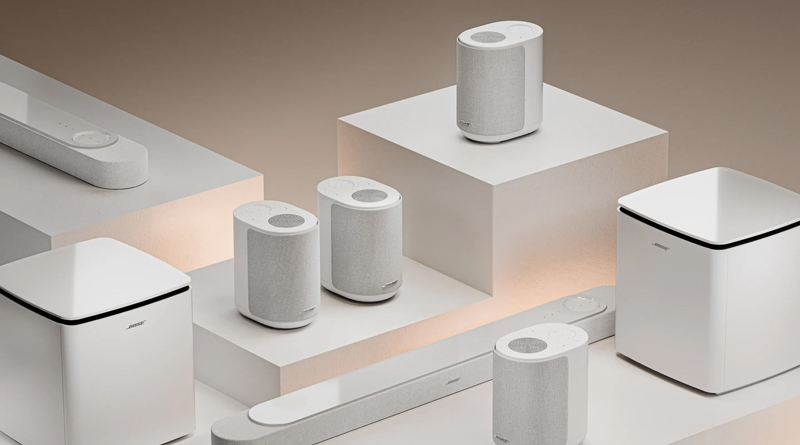
The Lifestyle Ultra Speaker is not designed to work with your TV by itself but a set of two can be used as surround speakers with a Lifestyle Ultra Soundbar as part of a home theater configuration. It is not recommended to use the Lifestyle Ultra Speaker with a TV using Bluetooth or a 3.5 mm aux line input due to latency/lip sync issues.
Which Bose soundbars are Lifestyle Ultra Speakers compatible with?
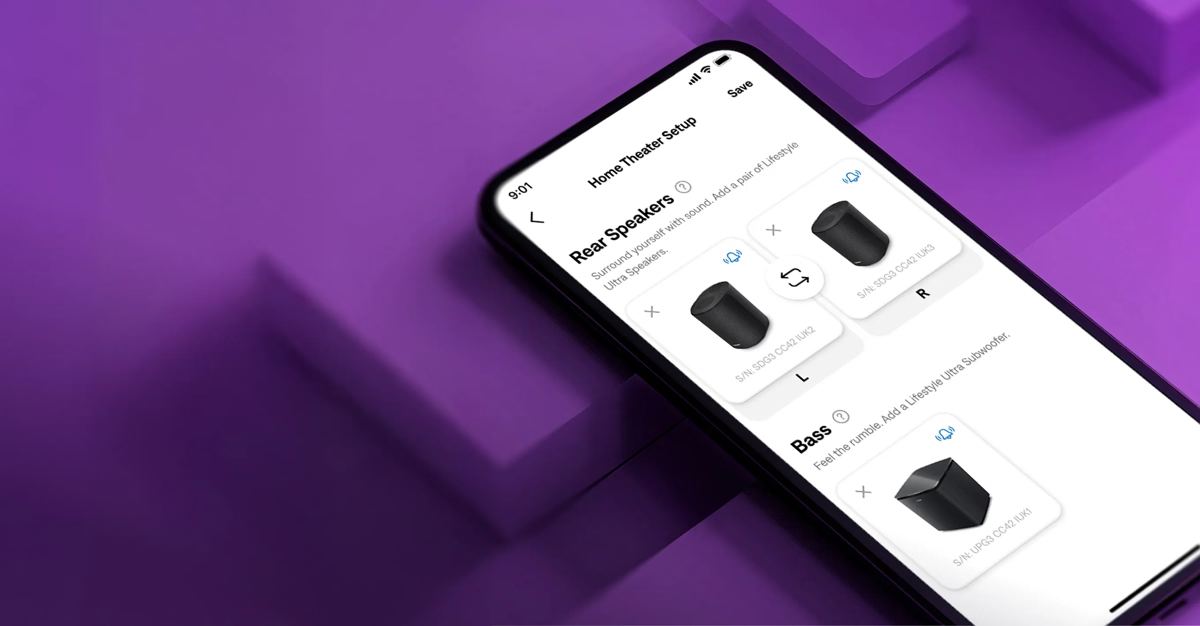
They are only compatible with the Lifestyle Ultra Soundbar. The Lifestyle Ultra Speakers can be configured as surround speakers for the Lifestyle Ultra Soundbar via the Bose app to create a full wrap-around, immersive soundstage. If setting up two new Lifestyle Ultra Speakers as surround speakers at the same time as a Lifestyle Ultra Soundbar, start with the soundbar first or select the Home Theater option in the app during setup to minimize steps later.
Do I need to set up my Lifestyle Ultra Speakers as surround speakers at the same time as my Lifestyle Ultra Soundbar?
They are only compatible with the Lifestyle Ultra Soundbar. The Lifestyle Ultra Speakers can be configured as surround speakers for the Lifestyle Ultra Soundbar via the Bose app to create a full wrap-around, immersive soundstage. If setting up two new Lifestyle Ultra Speakers as surround speakers at the same time as a Lifestyle Ultra Soundbar, start with the soundbar first or select the Home Theater option in the app during setup to minimize steps later.
Can source devices, such as a turntable or iPod, be connected directly to the Bose Lifestyle Ultra Speaker?
Yes. You can connect a source device via the 3.5 mm aux input at the rear of the speaker. To switch to the aux source, press and hold the play/pause button. The aux source can also be used with two Lifestyle Ultra Speakers configured in a stereo pair.
How do I control my Lifestyle Ultra Speaker?
For music streaming over Bluetooth or Wi-Fi, use your music service provider app to play/pause, skip, and adjust the volume. You can also use the speaker buttons or voice control (if enabled). For music via a 3.5 mm aux input, you may need to set the output volume on your source device to prevent your Lifestyle Ultra Speaker from distorting. Play/pause and skip must be done using your source device, but you can use the Bose app, speaker controls, or voice control to adjust the volume of content played over the 3.5 mm aux input.